Thursday, June 21, 2018

AU 2018 - Go Vote NOW for your favorite classes

Busy, busy, busy, my life for the past 12 months.  Being full time on a project running 3D MEPFP coordination, an extremely fast paced project, really keeps a person away from things like a blog :)

But, something good will hopefully come out of it!  This is where you come in.  With the work I've been doing, I submitted a class to to present at Autodesk University 2018 this coming November (2018) in Las Vegas (USA). 

To vote for my class, click this link:
http://au.autodesk.com/speaker-resource-center/call-for-proposals/voting

When you get to the page, search for "baseball" (yes, baseball, you'll see why when you see my class details) and you will get directly to my class where you can vote to help get my class selected for AU 2018.


Thank you in advance!

Thursday, January 26, 2017

Navisworks 2017 Crashing - Updating Clash Tests

Wow, it's been a looooooong time since I've actually posted!

We've been having an issue lately where Navisworks 2017 was crashing when some of our users were using the Update All for Clash Detection.  Tried multiple things, updating graphics card drivers, reinstalling, service packs, nothing worked.  Reached out to Autodesk and got a response that there are some Windows updates that is causing the issue.  Well, today, Autodesk released a KB article outlining what updates are causing the crashing behavior:

https://knowledge.autodesk.com/support/navisworks-products/troubleshooting/caas/sfdcarticles/sfdcarticles/Navisworks-crashes-when-trying-to-run-clash-in-all-models.html

The development team is continuing to investigate the cause and will update the above KB article if more Windows updates are causing the crashing to occur.  Hopefully, they come up with a Service Pack or Hotfix that will address the issue so we don't have to continuously check our Windows updates to make sure these listed updates don't get installed.

Tuesday, September 23, 2014

Turning the Page

Recently, I turned the page and started a new chapter in my work life.  I’ve moved on from being an Application Engineer for an Autodesk reseller in the Chicago area and am happy to announce that I am now the Technical Application Manager for a General Contractor in the Chicago area!

I’ll continue to keep this blog going, just may have a slightly different twist on some of the items I’ll be posting about. I’ll now be dealing with much more that just Autodesk products, so you may start to see some info coming across about how non-Autodesk products are being utilized in conjunction with Navisworks and the BIM 360 products.  You may even start to see posts about non-Autodesk products in general!

It’s definitely a different world being back in the AEC industry…should be a fun ride!

Thursday, August 28, 2014

Shortest Distance comes to BIM 360 Glue

If you haven’t opened up BIM 360 Glue (desktop application) in a few weeks, an update was published and Glue now has a new Measure Tool….Shortest Distance!  This was one of the tools I couldn’t believe Glue didn’t have when I first started working with Glue and coming from using Navisworks.

A much welcomed addition!!

image

Tuesday, July 15, 2014

Latest Update to BIM 360 Glue–Clash Status and Markup

If I have a dollar for every time someone asked me if Glue had a status for it’s clashes I’d be writing this blog from a beach in Maui…ah, who am I kidding, I wouldn’t be writing this blog Smile

Anyway, I won’t be (theoretically) collecting those dollars anymore! The latest update to BIM 360 Glue is the introduction of Clash Status.  You can now mark your clashes to be Open, Ignored or Closed and fixed clashes will now become Resolved instead of being removed.  As for Ignored & Closed status, here’s an explanation from the Help

Clashes can be marked as "ignored" by the team members working on the merged model. Only admins can "close" clashes, providing a more formal level of control for the VDC/BIM manager. Clash status can be changed back to "open" if needed. Glue recognizes if a clash from a previous version has been fixed. If the clash no longer exists, it will be automatically marked as "resolved."

image

Another update is the ability to add a Markup directly to the Clash.  In the past, you could kind-of do this, but it was held as a Markup outside of the Clashes. Now you can just select a clash and add a Markup to it.  The nice thing about the Markup in Clash is that it also adds a Markup to the Markup “tool”, so even Clash Markups can be viewed with the iPad app!

Note though, if you use the Filtering/Grouping, you can’t add a Markup to the Group, you have to pick individual clashes to add a Markup.

image

Oh, one more thing….these updates are available to ALL projects, new or old.  Old projects (old meaning before July 11, 2014 basically) will prompt you for an update when you go into your Clash Test.  It does a “one time update” and then you have the new functionality!

Thursday, June 26, 2014

Updating the Navisworks NWC Exporters

With (practically) each and every Service Pack/Update that Autodesk puts out for Navisworks, there is a corresponding update for the NWC Exporters…

image

How many of you actually download and install the update for the NWC Exporters?

Well, if you don’t, you should be.  I ran across an issue the other day where a customer was exporting a Revit 2014 model to NWC (2014) and many of the walls weren’t showing up when opening/appending the NWC file in Navisworks, even though the walls were visible in the Revit view. I got the file and tried it myself, worked perfectly. I knew the customer had SP1 for Navisworks 2014 installed, so I asked if they had also updated the Exporters…nope. Once they installed the update for the Exporters, all was good.

It’s very easy to miss, or should I say look over, when you go grab an update for Navisworks. But the next time Autodesk rolls out an update for Navisworks, make sure you also install the update for the Exporters (if it’s available).

Thursday, March 27, 2014

What’s New in Navisworks 2015

Wow, time has flown this year, the 2015 Autodesk products have been announced!

In regards to Navisworks, here’s my highlights of the new features for 2015…

  • 2D Quantification Tools (Incorporating similar tools that were in QTO)
  • 3D Quantification Improvements
    • Property Mapping now available (similar functionality was in QTO)
  • Autodesk Rendering Enhancements
    • Navis get’s cloud rendering!
  • ReCap/Point Cloud Improvements
    • Navis has new ways to “convert” the point cloud, which will help with performance and being able to select portions of a point cloud.
  • Redline Toolset now includes and Arrow tool (finally, no more manual arrows!)

This isn’t an all-encompassing list, just a few highlights.  As I get more time to actually get into some of the new features, I’ll report back Smile

Monday, March 10, 2014

Autodesk 360 vs BIM 360

This topic seems to come up quite a bit and it usually starts off with “isn’t BIM 360 part of my Autodesk 360 account services?”  It’s a pretty easy question to answer…”No”.  Thanks for asking, talk to you later Smile

No, I don’t just leave it at that…

In reality, it’s pretty common for folks to think that BIM 360 is part of their “subscription cloud services” since Autodesk has gone to utilizing the “360” badge for most, if not all, of their cloud based services.  If you take a look at Autodesk’s Autodesk 360 Cloud Services website, it talks about what services are available in the cloud.  It discusses the freebies like storage, access anywhere, etc., then talks about “advanced” features, which includes Clash Detection and Field Management….i.e. Glue and Field (respectively).

However, the BIM 360 services/products are completely separate from the Autodesk 360 cloud services…no tie-in whatsoever.  Yes, BIM 360 Glue/Field are cloud based software/services, but I have yet to see anything, whether it’s my own usage of Glue/Field or any demo/presentation/literature from Autodesk that shows a workflow that allows you to access information you’ve saved to your Autodesk 360 account.

Let me take a step back for a second and explain Autodesk 360 services.  At its core, Autodesk 360 accounts give you storage capability (5GB for non-Autodesk users/non-subscription users and it’s 25GB for Autodesk Subscription accounts/users).  You can also view any document you’ve uploaded to the cloud via a mobile app, share the document with anyone (even if they don’t have an Autodesk account), and even edit a DWG file that’s been saved to your cloud storage with basic editing tools.  Then, we get into the Subscription benefits…which vary depending on what products or suite of products you have.  I’m not going to go into the whole list, but examples are analysis, rendering and simulation to name a few. What’s not included, which is where the confusion sets in, is BIM 360 Glue and BIM 360 Field.

For example, take a look at this screen shot from the Autodesk 360 Cloud Services website…

clip_image002

Notice how the “flow” of information goes…from Revit, to the Cloud Services (Autodesk 360), then to BIM 360 Glue/Field and even back in the opposite direction. Currently this is not a workflow that works!  You can’t access a document of any kind from the Autodesk 360 Services cloud in the BIM 360 applications, or even push information to the Autodesk 360 cloud services from the BIM 360 applications. In my eyes, the image should really look more like this…
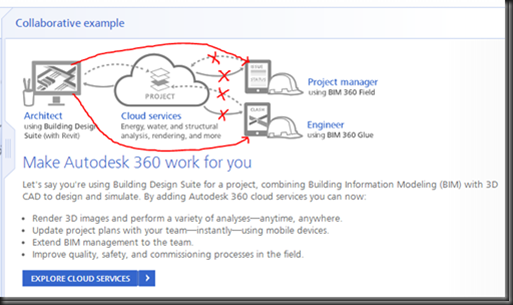
clip_image003

Now, the only thing I can say about the above referenced screen-grab is this: there is a possibility that Autodesk can actually make this workflow work via their consulting/programming group, but I haven’t seen or heard of it.

So to sum up, Autodesk 360 and BIM 360 are two different cloud services that Autodesk provides. Autodesk 360 can be a Dropbox-like storage for the non-Autodesk or non-subscription users, or it can be that plus a cloud service area to perform some resource hogging tasks (rendering, analysis, etc.) for those on Autodesk Subscription.  On the other hand, BIM 360 Glue/Field are separate cloud-based applications that utilize their own cloud area to host the associated data per project (or potentially per ‘host” for Glue, which can contain more than 1 project).

Tuesday, February 4, 2014

Updated Version of BIM 360 Glue Released

The folks over at Beyond Design have a great little post going over some of the new features of the Autodesk Glue iPad app (version 2.2), which can be viewed HERE.

Some of the new features include…

  • Updated User Experience
  • Select Object Property URLs
    • You can actually go to the URL from the App
  • Support for Transparent Objects in Views and Markups
  • Contextual User Assistance

You can get the new/updated version by going to the Updates in your App Store on your iPad.

Thursday, January 30, 2014

BIM 360 Field Update Coming

If you use Autodesk BIM 360 Field, you’re going to be seeing some changes very soon around how documents, specifically PDF’s, are handled when viewing them on the iPad.

When you login to Field, you’ll be seeing a message that looks like the image below…

Field_PDF Update

Now, I know many of you will be asking the question; “when is the update going to be live?”  If I knew, I’d tell you.  As with anything Autodesk pushes out for updates, the date is held confidential.  If I had to guess, it’s going to be a few weeks.  I’m sure they are pushing this notice out so that people can be prepared because you’ll need to do some “upgrading” to your documents, just like the notice says (second line from the bottom).  The upgrade is actually a one-time re-sync of your Document Library, so it’s going to take a bit longer to sync your iPad when you choose to do so. You do have the ability to wait to upgrade the Library (see below), so please choose carefully.  Just remember, once the Document Library gets updated, everyone on that project is going to have to do the re-sync of the Library to the iPad.

Field_PDF Update2

If you are going to update the Library on your iPad, I’d do this while connected to a good, strong, reliable wireless connection to make sure the update goes all the way through.

Autodesk BIM 360 Products

So I’ve been pretty quiet on the blog front this year (that’s kind-of an understatement!).  It’s not that I don’t have much to share, but it seems like every day passes way too fast.

The main reason though for my practical non-existence in the blogging world is that in the summer of 2013, I started the trek down the BIM 360 road with Glue and Field.  I was one of only a select few that were chosen by Autodesk to partake in being trained on the BIM 360 products in the US. The BIM 360 products are not like the majority of the Autodesk software and Autodesk didn’t release these products to all of the channel partners/resellers.  So much of my time that I have “free” (time that I’m not spending with customers around a handful of products), I’ve been diving into BIM 360 Glue and Field

I’ve tossed around how I wanted to share my knowledge around BIM 360 Glue and Field.  The biggest question I was asking myself was whether or not I wanted to keep this blog just Navisworks info or if I wanted to turn it into more of a Navis/BIM 360 blog.  Well, I’m going to do the latter.  With both product lines having some similarities/differences and being able to work together, I figured it was best to keep the info all in one place.

So in the near future, you’re going to start to see BIM 360 information along with Navisworks on this blog.  Hopefully I can also start to clear the air a little on the many questions people have around BIM 360 Glue and Field compared to Navisworks…specifically around Glue vs Manage.

Wednesday, January 29, 2014

Navisworks 2014 Hotfix 3

Autodesk just released a new Hotfix for Navisworks (all flavors) and it fixes/resolves the following issues…

- Problems resulting from operations that involve clicking in the first column of the Clash results grid, such as collapsing/expanding groups, dragging clashes and resizing columns.
- Issues with material and transparency inconsistency when importing FBX files.
- Issues with the automatic selection of the correct Rendering engine (Presenter or Autodesk)

Note: it is not necessary to have installed Navisworks 2014 Service Pack 1 before installing this hotfix

You can download the appropriate version HERE

Friday, June 28, 2013

Navisworks File viewable in Glue Offline

I’m sure by now many of you have heard of Autodesk’s BIM 360 Glue service. Since it’s a cloud based service, you need WiFi (or Data) access to be able to access the cloud and the models you’ve “Glued”.  It’s also a paid-for service, which many people do not have…yet.

However, you can download the iPad app (yes, it’s iOS only at this point) and still view Navisworks models on your iPad with Glue!  You don’t’ need to upload anything to the web/cloud, its all local and done through iTunes. Here’s a little sample video showing the process (no audio)…

Navisworks file on iPad with BIM 360 Glue

So for those of you looking to view your Navisworks files on an iPad, this is probably the best way to do it for FREE!

Thursday, April 4, 2013

Navisworks 2014 gets QTO

As you’ve probably seen in the new features list, whether it was here on my blog or over at Beyond Design, Quantification has come to Navisworks 2014.  I’ll be doing posts on the new Quantification features in the future, but wanted to get one thing out that I know is going to be asked…does it only come with Manage?

NO!

Whether you use Simulate or Manage, you will have the ability to use the Quantification tools within Navisworks 2014.

Wednesday, April 3, 2013

System Requirements for Autodesk Navisworks 2014

Below is a grab of the System Requirements for Navisworks 2014…this pertains to Simulate and Manage. 
Please, please note that Windows XP is NOT listed!!  If you are still using XP (or even Vista, which I rarely run into), you’re going to need to upgrade your OS!  Not to say that Navisworks won’t install or run, but any issues relating back to the OS will not be supported.  Also note that Windows 8 32bit is not listed…meaning it’s not supported.  Autodesk has a page dedicated to OS compatibility for Navisworks, all versions - Operating system compatibility for Autodesk Navisworks
System Requirements for Autodesk Navisworks 2014
  • Windows® 8 (64-bit) or Windows® 7 (32 or 64-bit) Home Basic, Home Premium, Professional, Enterprise, or Ultimate edition (recommended) (Service Pack 1)
  • Intel® Pentium® 4 or AMD Athlon™ processor 3.0 GHz (or higher) with SSE2 technology
  • 512 MB RAM (2 GB or greater recommended)
  • 10 GB free disk space for installation
  • Direct3D 9® and OpenGL® capable graphics card with Shader Model 2 (minimum)
  • 1,280 x 800 VGA display with true color (1,920 x 1,080 monitor and 32-bit video display adapter recommended)
  • Microsoft Mouse-compliant pointing device
  • Microsoft® Internet Explorer® 7.0 or later web browser

Tuesday, March 26, 2013

What’s New in Navisworks 2014

Ah, the spring time (in the United States anyway) when the weather starts to change (unless you live in the Midwest like me, still feels like December!) and Autodesk rolls out the new products.  Navisworks has some nice features in 2014 and this should be an interesting year talking to customers about the new features.

The guys over at Beyond Design put together a nice little list of the key features in Navisworks 2014.  You can read their post HERE.

Taking a step away from the key features they show, here’s a little list (not a complete list) of some of the other things you’ll see in Navisworks 2014…

  • Timeliner Selection Set Export
    • This is interesting…you can export your Task List to create a folder of Selection Sets that match the name of the Tasks.  The Sets are then automatically attached to the Tasks. At this point, you’d need to add items to each Selection Set.
      • This should make attaching/mapping objects to tasks much, much easier!
  • Timeliner Format Update
    • You can now utilize Primavera P6 v8.2! (this was a big issue with 2013)
  • Preserve Clash Highlighting in Viewpoints reporting
    • A feature that sneaked into 2013 via SP2 was the ability to save your Clash Report to Viewpoints and keep the visual fidelity of the Clash View. Well, it’s native in 2014! You even have the ability to choose if you want that functionality via a checkbox.  It even keeps the Redlines! (which it didn’t in 2013)
  • Clash Elements Different Colors
    • Basically, you can set Item 1 and Item 2 to be different colors instead of them both using the Clash Status color.
  • Clash Comments
    • The Clash Results now include a column that shows if a Clash has a Comment and how many.
  • Clash Filters
    • You can filter the Clashes to only show what you currently have selected.  New for 2014…
      • Exclusive – if you have the 2 clashing elements selected, this will show clash results where both of the clashing items are included in your current item selection.
      • Inclusive – if you have 1 or 2 clashing elements selected, this filter will show clash results where one or both or the clashing items are included in your current item selection.
        • I can see people using the Inclusive quite a bit.
  • Clash Report Filter
    • If you have a Filter applied to your Clash Results, you can export a Report of just the Filtered Clashes.
  • Clash Isolation Settings
    • The Dim Other and Hide Other are no longer part of a drop-down menu, they are buttons next to each other.
  • Measurements (Nice enhancements here!)
    • We can now do measurements were we can lock the X, Y or Z axis from the first point selected.
    • We can now measure in a Perpendicular (huge!) or Parallel alignment to the surface of an object.
      • I’ll definitely be doing a video for this one soon!
    • We also get some new visual cues when selecting a Face (small rectangle behind the cursor), Edge (small line behind the cursor) or Point (an “X” behind the cursor).
      • The visual cues replace the cursor changing, the cursor now keep a “+” as it’s graphic.
  • Rendering
    • Wow, there sooooo much to this now that we can use the same Materials as the other Autodesk software and the same rendering engine.
    • We also get the Ray Trace tool that was introduced in Revit 2013.
  • Sectioning
    • You can now “limit” your sectioning planes/box to elements you have selected.
      • Oh, this is nice when you want to show a section cut and the limit to be 1st Floor to 2nd Floor!

So throw list together with what the guys and Beyond Design have (Quantification, Rendering, ReCap (point clouds), etc.) and that’s pretty much what your going to see in Navisworks 2014!

Oh, I should note…Clash items listed above are only available in Navisworks Manage, everything else will be available in Navisworks Simulate as well.

More to come soon once I get Navisworks loaded on my main computer Smile

Wednesday, February 27, 2013

Reveal Hidden Elements for Navisworks

This is more of a “wish-list” item that came up during a discussion with a customer training I was doing. 

The question always comes up…”how do you turn on specific elements that have been hidden?”  Well, the answer(s) isn’t the best…you can look through the Selection Tree and look for elements that have been “grayed” out, Unhide All (then re-hide the objects that are supposed to stay hidden), make the object/objects a Selection Set so you can manage them a little easier, etc.  Basically, there isn’t a good way.

One of the users brought up the idea of having a “Reveal Hidden Elements” mode like Revit has, which is a great idea.  Here’s to hoping that Navisworks 2014 (whenever that comes out) will have such a “feature” to help with object visibility.

Monday, January 28, 2013

Hidden Update in Service Pack 2

Well, at least it seems like it was a hidden update to me.  What I’m talking about is a feature that people have been asking about for a while…being able to save a Clash Report to Viewpoints in Navisworks. 

Technically it’s not a new feature, you’ve been able to do it for as long as I can remember.  But, it’s never REALLY worked.  The resulting saved Viewpoints never kept the “visual” settings when looking at the Clashes in the Results tab of the Clash Detection panel.  So the results were really just the camera position with elements in their native color and none of the elements in front of the clash hidden or transparent or wireframed or etc.

Here’s the Clash Results Viewpoint (while having the Results tab “active” in Clash Detection)…

Audubon Center-ClashReport

Prior to Navisworks 2013 Service Pack/Update 2, this was the result of the “Saved Viewpoint” when the Report was exported to Viewpoints…

Audubon Center-ClashReport-VP_PreSP2

And now, here’s what you get with Navisworks 2013 after Service Pack/Update 2 is installed…

Audubon Center-ClashReport-VP_PostSP2

FINALLY, the report exported to “Viewpoints” actually shows the same view settings as the Results tab does!  This means that when the NWF is Published to a NWD, someone with Freedom (or Simulate) can actually review clashes!

But, there is a bit of bad news.  It appears that any Redlines that are created on the Clash do not come through.  However, if you create a Redline Tag, the associated Comment WILL come through and be available in the Viewpoint…which doesn’t really help since you can’t see the Redline Tag.  Also, if you add a Comment and/or an Assign(ment), those will also come through and be available in the Viewpoint.

I’m glad to see the progress has been made to make the Viewpoints Report capture the Results visual settings.  Hopefully we’ll see some more improvement to also capture the Redline information.

Wednesday, September 19, 2012

Navisworks 2013 Service Pack 2

Looks like another service pack for the Navisworks family of products was recently released (short list of updates via Beyond Design)…

  • Performance issues when working with a large volume of selection and search sets.
  • Issue where some commands appear disabled after dragging a selection set to a folder.
  • Show command didn't work at the folder level for sets hidden in folders.
  • Crash when trying to drag a set into a folder.
  • Area/Volume properties from Revit Drawings not available.
  • Inventor models are rotated at 90-degrees.
  • A number of unexpected crashes in Clash Detective
  • Unhide All taking much longer when Clash Detective is open.
  • Not possible to rename a Clash result after a drag and drop.
  • Clash groups expand unexpectedly.
  • Renaming results in the Clash results grid performance issues.
  • Resolved a performance issue where loading a model is extremely slow when Timeliner is open.
  • 2D measurement start, end and difference values are incorrect.
  • Cancelling or closing the options editor using keyboard shortcuts retains options.
  • Cinepak Codec for 64 bit is now available.
  • CSV export from Selection Inspector now available

As always, make sure you read the Readme file before installing…the Readme also includes a full list of updates. 

Also make sure you download and install the appropriate version (32bit vs 64bit, as well as Freedom, Simulate or Manage).  Please notice there is also a download for the Navisworks Exporters, so you’ll want to install that as well if you are exporting files to NWC from (for example) AutoCAD or Revit.

Download - Autodesk ® Navisworks ® 2013 Service Pack 2

Monday, September 17, 2012

Timeliner with Primavera Web Service

I recently had an issue come through regarding the use of the Primavera P6 Web Service with Navisworks 2013 and it not working.  The users could access the P6 service outside of Navisworks, but when they attempted to connect to the P6 service through Timeliner, it would error out and not connect/download the content.  The error message was an “Unexpected wrapper element” with some locations called out.

The issue came down to the fact that they were using P6 V8.1…which Navisworks doesn’t support.  I verified with Autodesk support what is supported with Navisworks 2013…

Product: Engineering and Construction: 6.2.1 (SP4 Hot Fix 1), 7.0 (SP4), 8.2
Notes: Requires Primavera v6, 7 or 8 Engineering and Construction to be installed locally or remotely, along with the corresponding version of the Primavera SDK. TimeLiner connects to the Primavera database via an ODBC data source link.

Product: Primavera P6 Web Services: 6.2.1 (SP1 Hot Fix 1), 7.0 (SP1 Hot Fix 1), 8.0
Notes: Requires Primavera P6 v6, 7 or 8 Web Services installed within a suitable Web Application Server such as Oracle Web Logic or JBoss on the same machine as your P6 database.

So if you have plans to upgrade your Primavera services and use it in conjunction with Navisworks, you may want to hold off.