Thursday, June 26, 2014

Updating the Navisworks NWC Exporters

With (practically) each and every Service Pack/Update that Autodesk puts out for Navisworks, there is a corresponding update for the NWC Exporters…

image

How many of you actually download and install the update for the NWC Exporters?

Well, if you don’t, you should be.  I ran across an issue the other day where a customer was exporting a Revit 2014 model to NWC (2014) and many of the walls weren’t showing up when opening/appending the NWC file in Navisworks, even though the walls were visible in the Revit view. I got the file and tried it myself, worked perfectly. I knew the customer had SP1 for Navisworks 2014 installed, so I asked if they had also updated the Exporters…nope. Once they installed the update for the Exporters, all was good.

It’s very easy to miss, or should I say look over, when you go grab an update for Navisworks. But the next time Autodesk rolls out an update for Navisworks, make sure you also install the update for the Exporters (if it’s available).

Thursday, March 27, 2014

What’s New in Navisworks 2015

Wow, time has flown this year, the 2015 Autodesk products have been announced!

In regards to Navisworks, here’s my highlights of the new features for 2015…

  • 2D Quantification Tools (Incorporating similar tools that were in QTO)
  • 3D Quantification Improvements
    • Property Mapping now available (similar functionality was in QTO)
  • Autodesk Rendering Enhancements
    • Navis get’s cloud rendering!
  • ReCap/Point Cloud Improvements
    • Navis has new ways to “convert” the point cloud, which will help with performance and being able to select portions of a point cloud.
  • Redline Toolset now includes and Arrow tool (finally, no more manual arrows!)

This isn’t an all-encompassing list, just a few highlights.  As I get more time to actually get into some of the new features, I’ll report back Smile

Monday, March 10, 2014

Autodesk 360 vs BIM 360

This topic seems to come up quite a bit and it usually starts off with “isn’t BIM 360 part of my Autodesk 360 account services?”  It’s a pretty easy question to answer…”No”.  Thanks for asking, talk to you later Smile

No, I don’t just leave it at that…

In reality, it’s pretty common for folks to think that BIM 360 is part of their “subscription cloud services” since Autodesk has gone to utilizing the “360” badge for most, if not all, of their cloud based services.  If you take a look at Autodesk’s Autodesk 360 Cloud Services website, it talks about what services are available in the cloud.  It discusses the freebies like storage, access anywhere, etc., then talks about “advanced” features, which includes Clash Detection and Field Management….i.e. Glue and Field (respectively).

However, the BIM 360 services/products are completely separate from the Autodesk 360 cloud services…no tie-in whatsoever.  Yes, BIM 360 Glue/Field are cloud based software/services, but I have yet to see anything, whether it’s my own usage of Glue/Field or any demo/presentation/literature from Autodesk that shows a workflow that allows you to access information you’ve saved to your Autodesk 360 account.

Let me take a step back for a second and explain Autodesk 360 services.  At its core, Autodesk 360 accounts give you storage capability (5GB for non-Autodesk users/non-subscription users and it’s 25GB for Autodesk Subscription accounts/users).  You can also view any document you’ve uploaded to the cloud via a mobile app, share the document with anyone (even if they don’t have an Autodesk account), and even edit a DWG file that’s been saved to your cloud storage with basic editing tools.  Then, we get into the Subscription benefits…which vary depending on what products or suite of products you have.  I’m not going to go into the whole list, but examples are analysis, rendering and simulation to name a few. What’s not included, which is where the confusion sets in, is BIM 360 Glue and BIM 360 Field.

For example, take a look at this screen shot from the Autodesk 360 Cloud Services website…

clip_image002

Notice how the “flow” of information goes…from Revit, to the Cloud Services (Autodesk 360), then to BIM 360 Glue/Field and even back in the opposite direction. Currently this is not a workflow that works!  You can’t access a document of any kind from the Autodesk 360 Services cloud in the BIM 360 applications, or even push information to the Autodesk 360 cloud services from the BIM 360 applications. In my eyes, the image should really look more like this…
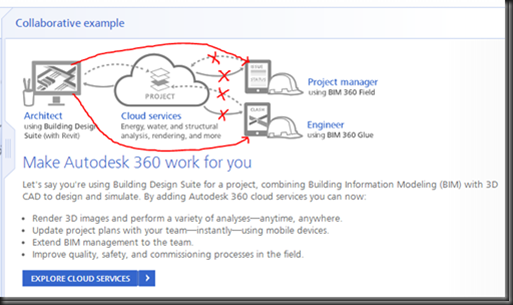
clip_image003

Now, the only thing I can say about the above referenced screen-grab is this: there is a possibility that Autodesk can actually make this workflow work via their consulting/programming group, but I haven’t seen or heard of it.

So to sum up, Autodesk 360 and BIM 360 are two different cloud services that Autodesk provides. Autodesk 360 can be a Dropbox-like storage for the non-Autodesk or non-subscription users, or it can be that plus a cloud service area to perform some resource hogging tasks (rendering, analysis, etc.) for those on Autodesk Subscription.  On the other hand, BIM 360 Glue/Field are separate cloud-based applications that utilize their own cloud area to host the associated data per project (or potentially per ‘host” for Glue, which can contain more than 1 project).

Tuesday, February 4, 2014

Updated Version of BIM 360 Glue Released

The folks over at Beyond Design have a great little post going over some of the new features of the Autodesk Glue iPad app (version 2.2), which can be viewed HERE.

Some of the new features include…

  • Updated User Experience
  • Select Object Property URLs
    • You can actually go to the URL from the App
  • Support for Transparent Objects in Views and Markups
  • Contextual User Assistance

You can get the new/updated version by going to the Updates in your App Store on your iPad.

Thursday, January 30, 2014

BIM 360 Field Update Coming

If you use Autodesk BIM 360 Field, you’re going to be seeing some changes very soon around how documents, specifically PDF’s, are handled when viewing them on the iPad.

When you login to Field, you’ll be seeing a message that looks like the image below…

Field_PDF Update

Now, I know many of you will be asking the question; “when is the update going to be live?”  If I knew, I’d tell you.  As with anything Autodesk pushes out for updates, the date is held confidential.  If I had to guess, it’s going to be a few weeks.  I’m sure they are pushing this notice out so that people can be prepared because you’ll need to do some “upgrading” to your documents, just like the notice says (second line from the bottom).  The upgrade is actually a one-time re-sync of your Document Library, so it’s going to take a bit longer to sync your iPad when you choose to do so. You do have the ability to wait to upgrade the Library (see below), so please choose carefully.  Just remember, once the Document Library gets updated, everyone on that project is going to have to do the re-sync of the Library to the iPad.

Field_PDF Update2

If you are going to update the Library on your iPad, I’d do this while connected to a good, strong, reliable wireless connection to make sure the update goes all the way through.